Epiq Discover Version 3.9.4 Release Notes (August 2024)
This release contains updates and improvements to Epiq Discover. The following notes highlight new enhancements to Epiq Discover and provide a list of bugs addressed in this release.
Release Highlights
Release 3.9.4 contains the following features, as well as additional enhancements listed in this document. The following sections contain details about these features and enhancements.
-
Tally, Sum, and Average. In the Document List, for the current document population, you can now perform tally, sum, and average calculations on field values This new feature provides advanced data analytics within Epiq Discover.
-
Container/Archive Document Exclusion. Using this new feature, you can now include top-level archive files as an Excluded Extension, which prevents the archive content from being extracted during processing.
-
Configurable Maximum Extracted Text Size. You can now adjust the maximum size of long text fields (such as Extracted Text, Track Changes, Comments) to reduce load on OpenSearch when processing large text documents.
-
Desktop Client improvements:
-
Security. Upgraded Java to provide you with the latest Java security updates and bug fixes. Full download and installation of Desktop Client is required.
-
Loading. Improved the ability to keep the entire family of a document together.
-
-
Filter Performance Improvements. Filters, both with and without terms, were optimized in this release, increasing efficiency while also increasing stability.
-
Transfer to Relativity. You can once again transfer files to RelativityOne.
Enhancements in Release 3.9.4
This release contains the following enhancements and updates.
General
Data Overview page pagination updates
Updated the Data Overview page to return 50 jobs per page. Also, implemented pagination in the project page to return 50 jobs per page. Use the pagination tools at the bottom of the page to go to the first, previous, next, or last page. (806995)
Processing
Archive file processing update
You can now include top-level archive files as an Excluded Extension, which prevents the archive content from being extracted. To do so, before processing, add the archive extension in Project Settings>Processing Settings>Excluded File Extensions. During processing, the system does not extract any files from the archive file. After processing, you can view only the archive file (parent document) in Inspect, and the Document State field of this file displays Excluded Extension. You cannot promote these files. (875006)
Analyze
Enhanced Filter job
Filters, both with and without terms, were optimized in this release, increasing efficiency while also increasing stability. To achieve this, made the following changes. (877132, 877154, 877285, 994923, 884927, 884928)
-
Since Epiq shifted focus towards rerunning the filter job within the current document population, which might have changed since the filter previously ran, the Run Modified Keyword button is no longer available in
 >Keywords panel in Inspect and Review.
 -
When you rerun a filter job, the system creates a new filter job with the existing job name.
Filter Jobs update
Now, when you delete a filter job, the system removes the filter job name from the following document fields.
-
KeywordHits
-
KeywordHits Unique
The removed filter job no longer appears elsewhere in the product, including in the Search Builder. Also, you can use the deleted filter name when creating a filter. (699081)
Near Dupe update
Previously, when you promote documents, near duplication process only considered parent documents, excluding attachments and child documents from the analysis.
Now, when you promote documents, the near duplication process includes full document families. The system considers child documents and non-email attachments when calculating near duplicate groups, assigning appropriate near dupe IDs. (407473)
Inspect/Review
Document List: View tally, sum, or average of a field value
In the Document List, for the current document population, you can now view the number of documents coded with a specific field value, the sum of the values of a specific field, and the average of the values of a specific field. (313118, 815327, 863327, 853574, 868328)
You can view the sum or average of the integer or float fields. You can view the tally of the fields, except the long text fields, date fields, and the following fields.
|
Annotation |
Begin Attach |
End Attach |
|
All Custodian |
Begin Bates |
Parent Bates |
|
Attachment File Name |
Child Bates |
Parent Duplicate ID |
|
Attachment Range |
Duration (Seconds) |
Transfer Job |
You can download the Tally report and view the values in a CSV file.
-
To view the tally, sum, or average of a field value, refer to View tally, sum, average, range of a field value in Inspect.
-
To view the Tally Report job details, refer to View Tally Report job details in Inspect.
Added the ability to transfer files to RelativityOne
You can now transfer files to RelativityOne. The procedure to transfer files to RelativityOne is similar to Transfer to Relativity using Relativity Server. However, due to the RelativityOne limitation, Epiq Discover does not support the transfer of image files other than single-page TIFF (Group IV) and JPG files to RelativityOne. (783439)
Premium Feature updates
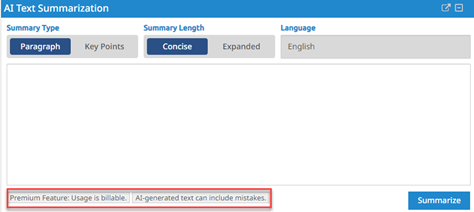
Added a confirmation checkbox for Billable Premium Features in Document Actions in Inspect and Review. When using Summarize, Translate, or Transcribe from Document Actions, you can now view the current usage for the current month.
Additional messaging in the AI Text Summarization window now conveys that the usage is billable, as shown in the following figure. (860588)
Text Summarization updates
Now, when you perform AI Text Summarization on documents larger than 450 KB (approximately 450,000 characters), the system skips the document, reporting this in the job details. If this occurs, a message explaining the skip, displays in the AI Text Summarization window and in the Text Summarization field. (862490)
Updated the Text Summarization job details page with the following information. (845268)
|
Skipped Documents |
The number of documents excluded from summarization. |
|
Summary Type |
The format in which the summary was displayed. |
|
Summary Length |
The length of the summary. |
|
Overwrite Summaries |
Indicates whether existing summaries should be replaced. |
Administration
Project Reports Updates
Added a new Report Type called Summary Exception Report. This report shows only documents skipped due to exceeding 450KB (approximately 450,000 characters). You can create a summary exception report and then view the report in excel with the following columns.
-
Document Number
-
Job ID
-
Exception
Create Summary Exception Report
Perform the following procedure to createSummary Exception Report.
-
In the Project page, click
 and then select PROJECT REPORT.
 -
In the Project Report dialog box, select a report from the list.
-
In Report Type, select Summary Exception Report.
-
Click Create.
After running a project report for a Summary Exception Report, you can view information about the report job. To view Summary Exception Report job details, refer to View Summary Exception Report job details.
Adjust the maximum text size of long text fields
You can now adjust the maximum size of long text fields as needed to alleviate issues when processing large text documents. To modify the maximum text size of a long text field, perform the following procedure.
-
In the Home page, click
and then select PROJECT SETTINGS. -
In the PROJECT SETTINGS tab, under Processing Settings, specify the maximum text size in Text Extraction Size.
-
Click Save.
If the text size of a long text field exceeds the specified value, the system truncates the text and then codes the Exception field. For example, when the Extracted Text field is truncated, the Exception field shows Extracted Text Truncated Due to size. (862267, 845538)
Default and maximum text size
The table below shows the default text size of a long text field and the maximum text size you can specify for a long text field.
|
Environment |
Maximum text size |
Default size |
|---|---|---|
|
Standard and basic |
8 MB |
8 MB |
|
High performance and multi-tenant |
75 MB |
75 MB |
Desktop Client
Loading: Improved the ability to keep the entire family of a document together
In Desktop Client Loading, we improved the ability to keep the entire family of a document together. We changed how worker fragments batch documents during loading to ensure the parent and child documents are accurately represented. (805558)
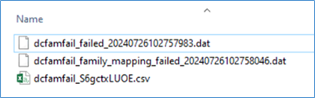
If the loading fails, the Desktop Client creates the following files. When this occurs, load the files again using these DAT files.
-
dcfamfail_failed_<timestamp>.dat contains failed documents
-
dcfamfail_family_mapping_<timestamp>.dat contains all the family documents with the Family Number and the Document Number
-
dcfamfail_<identifier>.csv report contains information about the failed job
The format for the DAT file timestamp is yyyymmddhhmmssms, where time (hhmmssms) is in 24-hour format and includes milliseconds (ms) as well.
Java upgrade
To provide you with the latest security updates in Java, to run Desktop Client you must first download it from the web client and then install it. This allows Desktop Client to provide the appropriate Java version. This requirement is only needed for the 3.9.4 release to update Java, as subsequent releases after this should automatically update when launching Desktop Client. (655284)
To download and install Desktop Client, refer to the following topics.
Bugs fixed in Release 3.9.4
The following bugs were resolved in this version.
|
Number |
Title |
|---|---|
|
683434 |
Email address is trimmed after inviting the user. |
|
716550 |
Transfer to Relativity | Transfer job fails with error "Error Downloading File\r\n" if authentication expires. |
|
749891 |
Production fails on large page-count documents |
|
796198 |
Processing | Processing and post processing failing due to extra 0kb file created. |
|
801610 |
Promotion | Promotion job not in progress as fragments are not getting inserted. |
|
822523 |
Production | Unable to find the submitted Production job in the Jobs Overview page and the JOBS page in Review. |
|
857698 |
Unable to create any project reports or load the Search Builder after running filter jobs that return a large number of search hits. |
|
876876 |
Keyword Panel | Filter job with special characters and no hits has incorrect search build when clicking the total. |
|
877758 |
M365 OneDrive Collection Fails with GraphServiceException | Error code: itemNotFound. |
|
882409 |
Mobile Collection | Collection fails when instant messages do not have 'Source'. |
|
882788 |
Mobile Collection | Collection job fails whenever there are unexpected empty strings in the filePaths in FragmentSettings. |
| 890563 | Transcription and Translation | Settings for existing projects get changed across all clients according to the settings in the newly created client. |